

TL;DR
App store metadata is the collection of text and visuals that represent your app in the App Store and Google Play, including the title, subtitle, keywords, description, screenshots, and icon. On iOS, only 160 characters are indexed for search (title + subtitle + keyword field). Google Play indexes roughly 4,110 characters. Getting metadata wrong is one of the most common reasons apps get rejected or stay invisible, so understanding every field and its rules is essential before you submit.
Search drives 65% of all app discovery on iOS and 58% on Google Play. Around 800 million people visit the App Store every week. Yet the thing that determines whether those people ever see your app, the metadata you fill out before hitting “Submit for Review,” is the part most first-time builders rush through.
This guide breaks down what app store metadata actually is, which fields matter for discovery versus conversion, how Apple and Google Play differ, and the mistakes that get apps rejected.
If you’re working through the full journey from idea to App Store, metadata is the final gate. It deserves the same attention as the code behind your screens.
App store metadata is every text and visual element that describes your app in the App Store or Google Play, including the app title, subtitle, keywords, description, screenshots, icon, preview video, category, and URLs. On Apple, only 160 characters (title, subtitle, and keyword field) directly influence App Store search rankings, while Google Play indexes over 4,000 characters of listing text. Good metadata improves both app discoverability and conversion rates while reducing App Review rejections.
App Store Metadata Components at a Glance
Metadata Element | Helps Search Ranking | Helps Conversion | Required |
|---|---|---|---|
App Title | Yes | Yes | Yes |
Subtitle | Yes | Yes | Yes |
Keyword Field (iOS) | Yes | No | Optional but highly recommended |
Description | Google Play only | Yes | Yes |
Screenshots | Partial (Apple OCR) | Yes | Yes |
App Icon | No | Yes | Yes |
Preview Video | No | Yes | Optional |
Category | Indirectly | Slightly | Yes |
Privacy Policy URL | No | Trust & Approval | Yes |
Support URL | No | Trust | Yes |
Release Notes | No | Existing users | Yes for updates |
What Is App Store Metadata?
App store metadata is every piece of text and visual content that represents your app in a digital storefront. It includes your app’s name, subtitle, keyword field, descriptions, screenshots, icon, preview videos, category selection, age rating, pricing, privacy policy URL, support URL, release notes, in-app purchase display names, and promotional text.
These elements serve two distinct purposes:
Discovery (algorithmic). The store’s search algorithm reads specific metadata fields to decide whether your app is eligible to appear for a given query. If the right words aren’t in the right fields, your app won’t show up, no matter how good it is.
Conversion (human). Once a person lands on your product page, the screenshots, icon, description, and reviews determine whether they tap “Get.” Tap-through-to-install rates average 33.4% on iOS and 27.7% on Google Play, which means roughly two-thirds of visitors leave without downloading. Metadata quality is the difference.
Think of it this way: discovery metadata gets your app found, conversion metadata gets it installed.
Apple App Store Metadata Fields: The Complete Reference
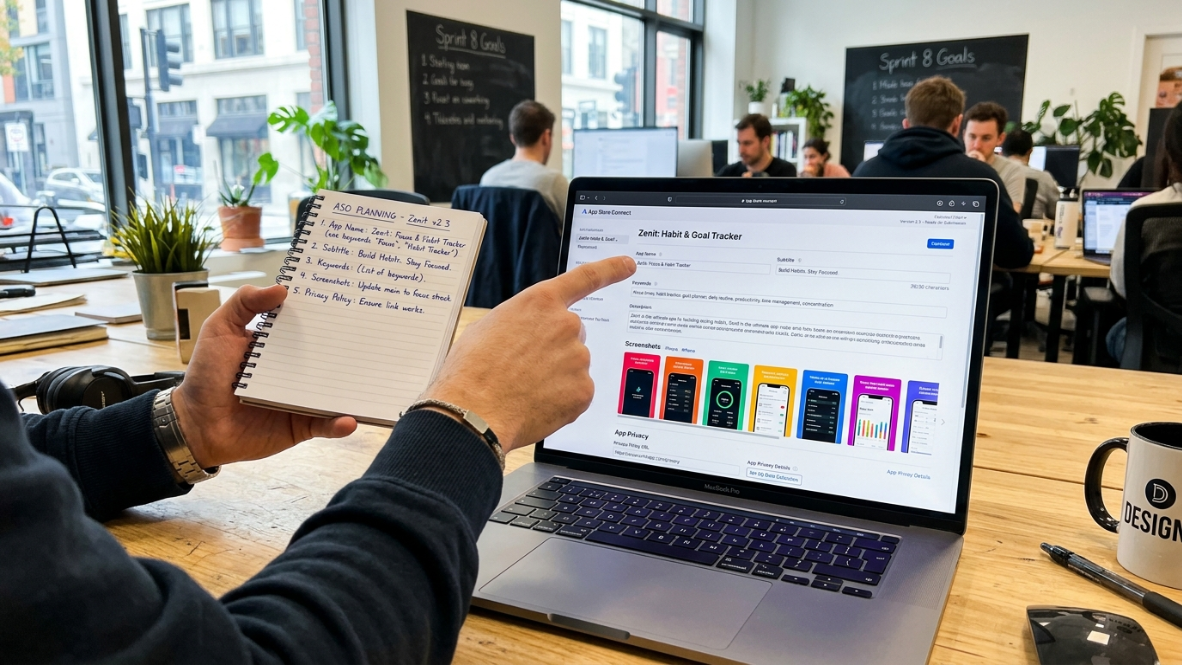
Here is every metadata field you’ll encounter in App Store Connect, along with its character limit, whether Apple indexes it for search, and what it’s actually for.
Field | Character Limit | Indexed for Search? | Notes |
|---|---|---|---|
App Name (Title) | 30 | Yes (highest weight) | The single strongest ranking signal |
Subtitle | 30 | Yes (second strongest) | Appears below the title in search results |
Keyword Field | 100 | Yes (medium weight) | Hidden from users; comma-separated, no spaces after commas |
Promotional Text | 170 | No | Appears above the description; updatable anytime without a new build |
Description | 4,000 | No | Apple does not index this for search |
Screenshots | Up to 10 per size | Partially (2025 update) | OCR now reads text overlays as a discovery signal |
App Icon | 1024×1024 px | No | Must be unique; no screenshots or hardware images allowed |
App Preview Video | Up to 30 seconds | No | Auto-plays in search results; first frame matters |
Category | Primary + Secondary | Indirectly | Apple auto-indexes category-related words |
Age Rating | N/A | No | Based on content questionnaire |
Privacy Policy URL | Required | No | Missing URL is a top rejection trigger |
Support URL | Required | No | Must be a working link |
In-App Purchase Names | 30 each | Yes | Indexed; often overlooked as keyword space |
Release Notes | 4,000 | No | Only visible to existing users |
For anyone new to native iOS terminology, this table is worth bookmarking. Every field maps directly to a form in App Store Connect.
The 160-Character Rule: Why Your iOS Search Surface Is Tiny
This is the single most important concept in iOS app store metadata, and most guides bury it.
Your entire indexed search surface on the Apple App Store is 160 characters: 30 (title) + 30 (subtitle) + 100 (keyword field). That’s it. Everything else you write, the 4,000-character description, the 170-character promotional text, the release notes, none of it helps anyone find you through search.
Compare that to Google Play, where roughly 4,110 characters of text are indexed across the title, short description, and long description. That’s about 25 times more indexed space.
The practical consequence is severe: every single character in your title, subtitle, and keyword field must earn its place. There is no room for filler, no room for vanity, and no room for repetition. Apple deduplicates across these three fields automatically. If “budget” appears in your title, putting it in the keyword field again wastes characters without adding any ranking benefit.
Practitioners in the ASO community are direct about this: for the store algorithm, one mention in the metadata is enough. Repetition does not increase keyword weight or make a term more significant for indexing. It only reduces available characters.
The Keyword Field, Specifically
The keyword field is 100 characters, hidden from users, and separated by commas with no spaces. This is a common trap. One ASO blog found that using spaces after commas in the iOS keyword field wastes one character per keyword. With 15 keywords, that’s 14 wasted characters, enough room for two additional short keywords.
Format it like this: budget,tracker,expense,money,finance,savings,monthly
Not like this: budget, tracker, expense, money, finance, savings, monthly
Also avoid including words Apple indexes automatically. Terms like “app,” “game,” “free,” “iPhone,” and “iPad” are already indexed based on your category and platform. Using them in your keyword field wastes space.
How App Store Search Actually Uses Metadata
Many developers assume every metadata field carries equal SEO weight. It doesn't.
The App Store evaluates fields differently based on whether they're intended for search or user conversion.
Highest Ranking Signals
App title
Subtitle
Keyword field
Secondary Ranking Signals
Screenshot text (OCR)
Category relevance
In-App Purchase names
Conversion Signals
Screenshots
Description
Reviews
Ratings
Preview video
App icon
Thinking about metadata in terms of ranking signals versus conversion signals helps prioritize optimization work before submission.
Apple vs. Google Play: Where the Metadata Rules Diverge
If you’re planning to ship on both platforms (or even just comparing strategies), you need to understand that Apple and Google Play treat app store metadata very differently.
Dimension | Apple App Store | Google Play |
|---|---|---|
Indexed text for search | 160 characters (title + subtitle + keyword field) | ~4,110 characters (title + short desc + long desc) |
Long description indexed? | No | Yes |
Keyword field exists? | Yes (100 chars, hidden) | No |
Metadata update without new build? | No (requires version submission) | Yes (store listing updates anytime) |
Screenshot text indexed? | Yes (since 2025 OCR update) | No confirmed equivalent |
In-app purchase names indexed? | Yes | No |
The strategic implications are clear:
On Apple, write your long description purely for conversion. Make it persuasive, human, scannable. Don’t waste energy seeding keywords into it because the algorithm ignores it entirely.
On Google Play, draft your long description with keyword placement in mind because every word is indexed and influences ranking.
You cannot maintain a single metadata document and push it to both stores. Teams that do this end up with a description that’s mediocre for conversion on Apple and mediocre for keywords on Google Play. Two separate strategies, two separate documents.
Google Play also lets you run keyword experiments without submitting a new build. On Apple, changing your subtitle or keyword field requires a new version submission and a fresh App Review cycle. This makes Apple metadata updates slower and riskier, which is exactly why getting it right before launch matters so much.
Apple App Store Metadata vs Google Play Metadata Comparison
Feature | Apple App Store | Google Play |
|---|---|---|
Hidden Keyword Field | Yes | No |
Long Description Indexed | No | Yes |
OCR Reads Screenshot Text | Yes | Limited |
Metadata Editable Without Update | Mostly No | Yes |
Max Indexed Characters | 160 | ~4,110 |
A/B Testing Metadata | Limited | Native Experiments |
Character Optimization Importance | Extremely High | Moderate |
Common App Store Metadata Mistakes (and How to Avoid Them)
Metadata errors are where many non-technical founders stall. The app works fine, but the listing is what prevents launch or tanks discoverability.
1. Keyword Stuffing in the Title
Apple’s review guidelines prohibit cramming keywords into your app name. A title like “Budget Pro - Finance Money Tracker Expense Manager” will get flagged. Use your strongest keyword naturally in the title and spread the rest across subtitle and keyword field.
2. Spaces After Commas in the Keyword Field
Covered above, but worth repeating because it’s that common. No spaces. Ever.
3. Ignoring the Keyword Field Entirely
Some developers leave it blank or barely fill it, thinking the title alone is enough. You’re giving up 100 indexed characters for free.
4. Misleading Screenshots
If your screenshots show features that don’t exist in the app, suggest financial services you don’t provide, or depict UI flows that aren’t real, Apple considers that misleading metadata. This triggers a rejection.
5. Missing or Invalid Privacy Policy URL
One of the biggest reasons apps get rejected is a missing or broken privacy policy URL. Apple requires it regardless of how little data your app collects. “We only store things locally” is not an exemption.
6. Placeholder Text Left in the Description
Default text, lorem ipsum, or copy-pasted template language in the description signals an unfinished product. Apple treats metadata as part of the product, not as marketing paperwork.
7. Never Updating Metadata After Launch
Practitioners report that most indie developers treat metadata like a submit-and-forget task, then wonder why their rankings erode over the following year. The developers who build compounding ASO results show up every 90 days and make small, deliberate changes. About 79% of apps update metadata at least quarterly.
Metadata Rejections: What They Mean and How to Fix Them
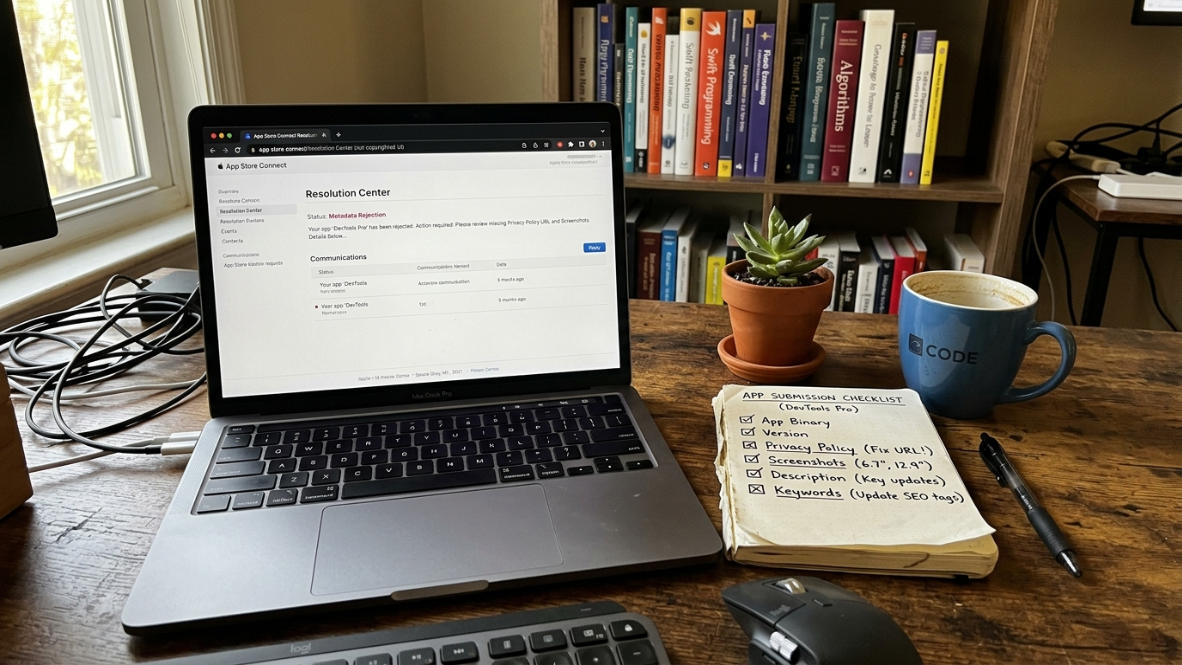
Getting a “Metadata Rejected” status in App Store Connect is not the same as a binary rejection. This distinction matters.
Metadata Rejected means the problem is in your listing, not in your compiled app. You don’t need to upload a new build. You fix the specific field Apple flagged, reply in the Resolution Center, and the review continues.
Binary Rejected means the code itself has an issue, which requires a new build upload.
The most common metadata rejection triggers include:
Missing privacy policy URL
Screenshots that don’t match actual app behavior
App name that’s misleading or contains competitor brand names
Incorrect or inconsistent information across platforms (one developer received a rejection for mentioning iOS version requirements in macOS release notes, which Apple flagged as an inconsistency)
Description mentioning features gated behind conditions without disclosure
Apple cross-checks your description against your screenshots against the actual app behavior. If any of these three disagree, expect a rejection.
This is exactly why metadata slows down launches more than code problems do. For guidance on navigating the full App Store review process, understanding metadata requirements before submission saves days of back-and-forth.
Screenshot Text as a Ranking Signal: The 2025 Update
Since the 2025 algorithm update, Apple’s OCR reads the text overlaid on your screenshots and uses it as a discovery signal. This means your screenshot captions (“Track spending in real time,” “Set budgets by category”) now reinforce your primary metadata keywords.
This doesn’t replace your title, subtitle, or keyword field. It supplements them. But it does mean that screenshots are no longer purely a conversion tool. They’re part of your metadata surface.
The implication: write screenshot text with your target keywords in mind, not just marketing copy.
Cross-Localization: How to Multiply Your Keyword Budget
This is the power-user technique that separates casual ASO from serious optimization.
Each App Store localization gives you a fresh 30 + 30 + 100 character allocation. If you only ship English (US) metadata, you’re working with 160 indexed characters. But the US App Store actually supports nine secondary locales (English UK, Spanish Mexico, French Canada, and others). An app that fills all of them can access up to 1,440 characters of keyword metadata feeding directly into US App Store rankings.
Localized listings also increase installs by an average of 49%.
The simplest first step is adding English (UK) as a secondary locale. The content can be identical to your US listing except for the keyword field, where you place entirely different keywords. This effectively doubles your indexed surface with almost no extra work.
How Often Should You Update App Store Metadata?
Metadata should not stay unchanged after launch.
A practical review schedule looks like this.
Time | Recommended Action |
|---|---|
Launch | Publish optimized metadata |
30 Days | Review keyword rankings |
90 Days | Refresh screenshots and subtitle |
Every Quarter | Reevaluate keyword strategy |
Major Feature Release | Update screenshots, subtitle and description |
Seasonal Campaign | Test promotional text |
How AI Tools Are Changing Metadata Workflows
AI metadata generators have become a legitimate workflow category. They help with first drafts of descriptions, keyword research, localization across markets, and staying within character limits.
Where AI tools genuinely help:
First drafts. Generating a starting point for your description, subtitle options, and keyword field rather than staring at a blank form.
Localization. Translating and adapting metadata across locales at a fraction of the cost of manual translation.
Character-limit compliance. Automatically trimming or expanding text to fit Apple’s constraints.
Where human review still matters:
Rejection risk. AI-generated copy can inadvertently include misleading claims, competitor names, or restricted terms that trigger App Review flags.
Brand voice. Generic AI output reads like generic AI output. Your metadata is your first impression.
Keyword strategy. Tools can suggest keywords, but deciding which 160 characters matter most requires understanding your specific competitive position.
If you’re building an app with AI, the metadata step should be part of the same workflow, not a disconnected afterthought. x1’s Launch studio handles App Store screenshots, listing copy, and submission preparation inside the same pipeline where the app gets built.
See how x1’s end-to-end workflow handles metadata →
Putting It All Together: Metadata in the Launch Lifecycle
App store metadata isn’t a form you fill out at the last minute. It’s the bridge between building something and getting it in front of people. The decisions you make in 160 characters on iOS (or 4,110 on Google Play) determine whether anyone ever discovers what you built.
The most effective approach treats metadata as a living document: get the initial version right before launch, then revisit it quarterly based on ranking data, conversion rates, and new feature additions.
For builders working through the full journey from idea to App Store readiness, metadata is where planning, design, and positioning all converge into a few hundred characters that carry the weight of your entire product.
Explore x1’s pricing for the full build-to-launch pipeline →
App Store Metadata Workflow
Most successful launches follow the same sequence.
Keyword Research
Competitor Analysis
Draft Metadata
Create Screenshots
Review Character Limits
Validate URLs
Submit for Review
Monitor Rankings
Update Quarterly
Key Takeaways
App store metadata directly impacts app discoverability and download conversion.
Apple indexes only 160 characters for search, making keyword selection critical.
Google Play indexes more than 4,000 characters, requiring a different optimization strategy.
Screenshots, icons, and preview videos influence conversion, while titles, subtitles, and keywords influence rankings.
Metadata should be reviewed and updated quarterly as part of an ongoing App Store Optimization (ASO) strategy.
Frequently Asked Questions
What is app store metadata?
App store metadata is the complete set of text and visual elements that describe and represent your app in the App Store or Google Play. This includes the app name, subtitle, keyword field, description, screenshots, icon, preview videos, category, age rating, privacy policy URL, and pricing. It serves both algorithmic discovery (helping users find your app) and conversion (convincing them to install it).
Does Apple index the app description for search?
No. Apple does not index the long description for search ranking. On iOS, only the app name (30 characters), subtitle (30 characters), and keyword field (100 characters) are indexed. The description matters for convincing users to download once they’ve found your page, but it plays no role in search visibility.
What is the 160-character rule for iOS metadata?
The 160-character rule refers to the total indexed search surface on the Apple App Store: 30 characters for the title, 30 for the subtitle, and 100 for the keyword field. These are the only characters that determine whether your app appears in search results. Everything else (description, promotional text, release notes) is not indexed.
How is Google Play metadata different from Apple’s?
Google Play indexes approximately 4,110 characters of text, including the long description, compared to Apple’s 160. Google Play has no hidden keyword field. Google also allows metadata updates without submitting a new app build, while Apple requires a new version submission for any metadata change to the title, subtitle, or keyword field.
What does “Metadata Rejected” mean in App Store Connect?
“Metadata Rejected” means Apple found a problem with your listing (screenshots, description, privacy policy URL, etc.) rather than with your app’s code. You can fix the flagged metadata and reply in the Resolution Center without uploading a new build. This is different from a binary rejection, which requires a new code submission.
Should I use spaces after commas in the iOS keyword field?
No. Each space wastes one of your 100 characters. With 15 keywords, spaces after commas cost you 14 characters, enough room for two additional short keywords. Use commas with no spaces: budget,tracker,expense,money.
How often should I update my app store metadata?
About 79% of apps update metadata at least quarterly. Regular updates let you respond to new search trends, incorporate keywords for recently added features, and improve conversion based on performance data. On Google Play you can update anytime. On Apple, metadata changes require a new version submission.
Can screenshot text affect my App Store search ranking?
Yes. Since the 2025 algorithm update, Apple uses OCR to read text overlaid on screenshots and treats it as a supplementary discovery signal. This means the captions on your screenshots should include relevant keywords, not just generic marketing copy.